1. Installation & Setup
Tested with Polyscope X SW 10.7.0
The steps below were verified on this software version.
The wenglor robot vision example ships as a single Polyscope X program file (.urpx) — there is no separate URCap to install. Importing the file adds the wenglor_examples, wenglor_api, and wenglor_helpers modules, the user-configuration variables, and the example main program to your installation.
Prerequisites
| Requirement | Value |
|---|---|
| Controller | Polyscope X compatible ControlBox (version ≥ CB5.6) |
| Robot arm | e-Series or UR Series arm |
| Knowledge | Basic knowledge of URScript |
| Machine Vision Device | B60 (firmware ≥ 1.4) or Machine Vision Controller (MVC) (firmware ≥ 1.1) |
| uniVision job | A uniVision job for calibration and object detection |
| Network | Robot and Machine Vision Device in the same network |
Commissioning steps
graph LR
A["Download<br/>.urpx"] --> B["Import into<br/>Polyscope X"]
B --> C["Enter robot<br/>password"]
C --> D["Configure<br/>User Config<br/>variables"]
D --> E["Teach<br/>poses"]
E --> F["Run<br/>calibration"]
F --> G["Run<br/>single_detection /<br/>multi_detection"]
Get the example file
- Get
Generic wenglor interface.urpxfrom thesourcesdirectory of this repository. - Copy the file to a USB stick or a location reachable from the Polyscope X file browser.
Import the program
- On the UR Teach Pendant, open the Polyscope X Program interface and choose to import a program file.
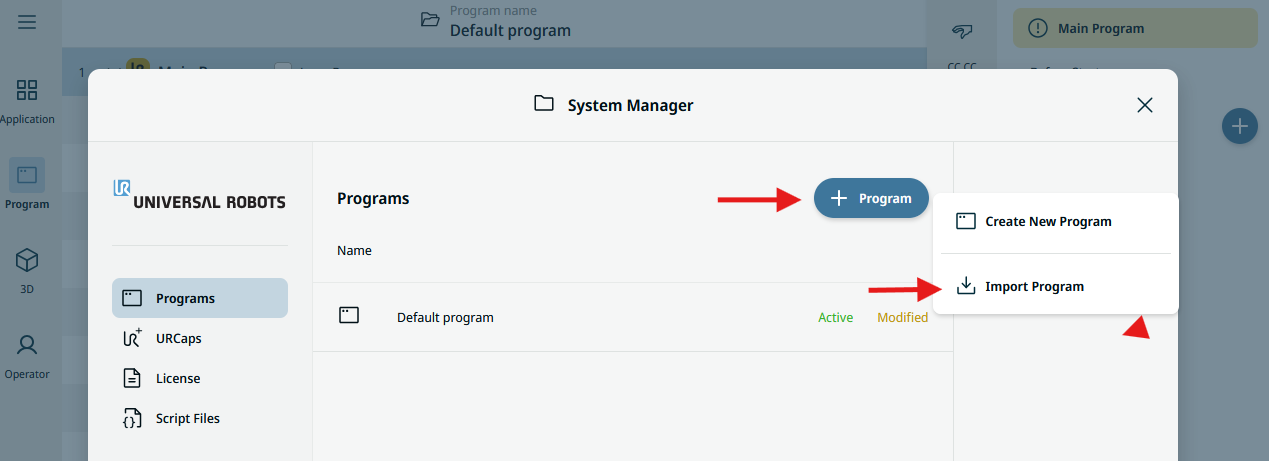
- Browse to
Generic wenglor interface.urpxand select it. - Confirm the import. Polyscope X loads the program together with its
wenglor_examples,wenglor_api, andwenglor_helpersmodules.
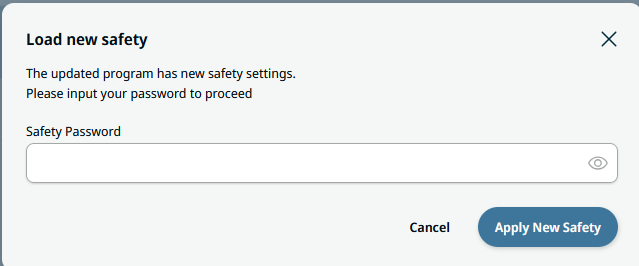
- Enter the password of the UR robot when prompted (by default
ursafe).
Note
On the Machine Vision Device website (tab Jobs → Robot Server), make sure the robot server is active. See Settings on Device Website in the wenglor robot vision manual.
Once the program is imported, continue with User Configuration to configure the connection, jobs, and poses.