3. Robot Program
The wenglor robot vision URCap adds program nodes to change the uniVision job, detect objects, get the object pose, detect the calibration target, and recalibrate to the target.
Switch to the Program tab on the UR side to build the robot program. The program nodes appear in the URCaps section of the left-hand drop-down menu.
Program nodes
| Node | Purpose |
|---|---|
| Change job | Loads the uniVision job on the Processing Instance (e.g. find_objects.u3p for detection, find_target.u3p for the calibration target). |
| Detect objects | Triggers a detection and fills the robot-server buffer. Writes the number of found objects into we_num_objects. Acts as a parent node for Get object pose. |
| Get object pose | Reads one object from the buffer: the 3D pose into we_object_pose, the shape model ID into we_shape_model, the additional value into we_custom_value, and a validity flag into we_pose_valid. |
| Detect target | Detects the calibration target and writes its pose into we_target_pose (plus we_custom_value and we_pose_valid). |
| Calibrate to target | Recalibrates the camera-to-ground relation against the calibration target, without creating a new calibration file (the result is only cached). |
For the full node and variable reference and the unit conventions, see Node reference below.
Program variables
The examples use these program variables (prefix we_), initialized in the Init Variables section:
| Variable | Type | Meaning |
|---|---|---|
we_object_pose |
pose | The 3D object pose returned by Get object pose. |
we_target_pose |
pose | The calibration target pose returned by Detect target. |
we_num_objects |
integer | Number of found objects (set by Detect objects). |
we_shape_model |
integer | Shape model ID of the current object. |
we_custom_value |
string | An additional value linked in uniVision (e.g. the detection score). |
we_pose_valid |
boolean | Whether the returned pose is valid — check this before moving. |
we_logging_on |
boolean | If True, the wenglor nodes write messages to the robot log. |
poses_taught (boolean, in the Before Start section) is used by the reference-frame update flow — see update_reference_frame.
Load the detection job
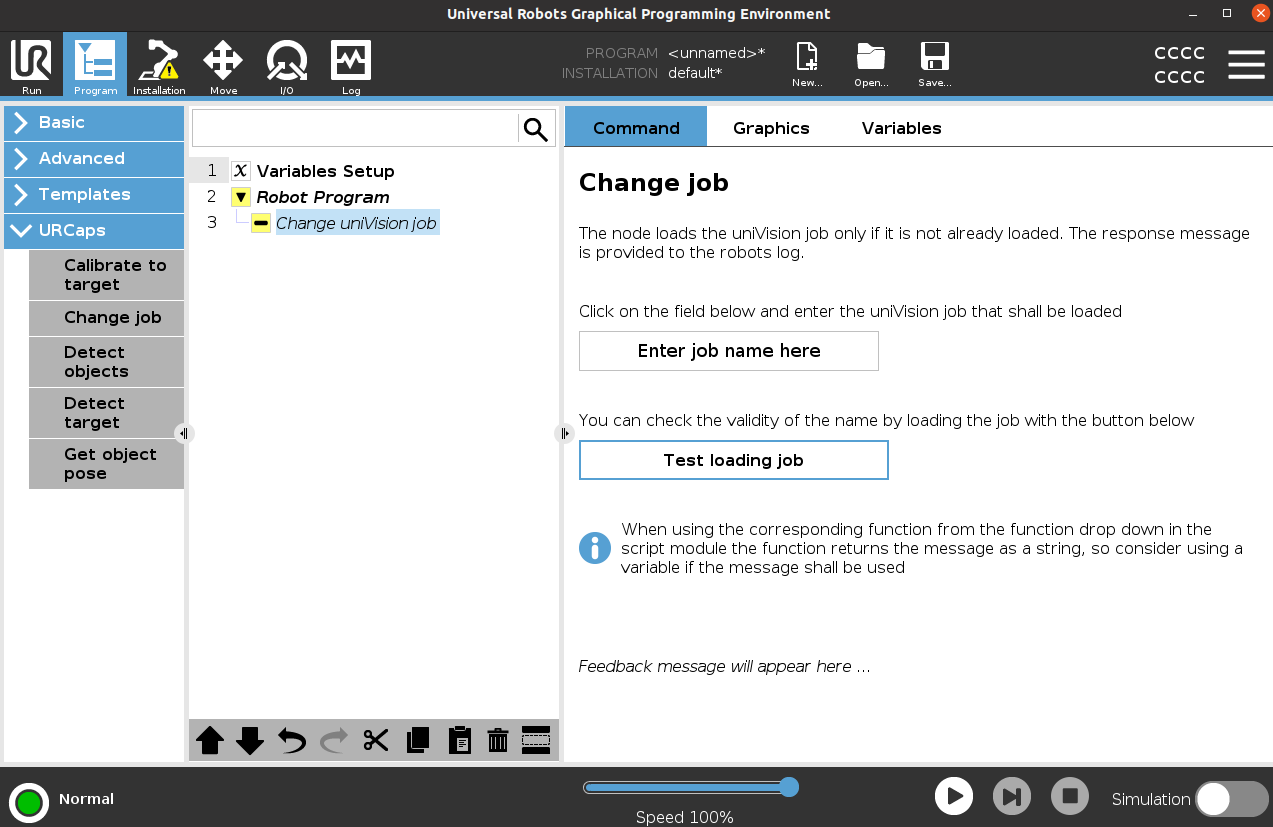
Add the Change job node and enter the name of the uniVision job file (e.g. find_objects.u3p). To test the validity of the job name, load it with the Test loading job button.
Detection pose
- Camera not on robot: Teach a fixed
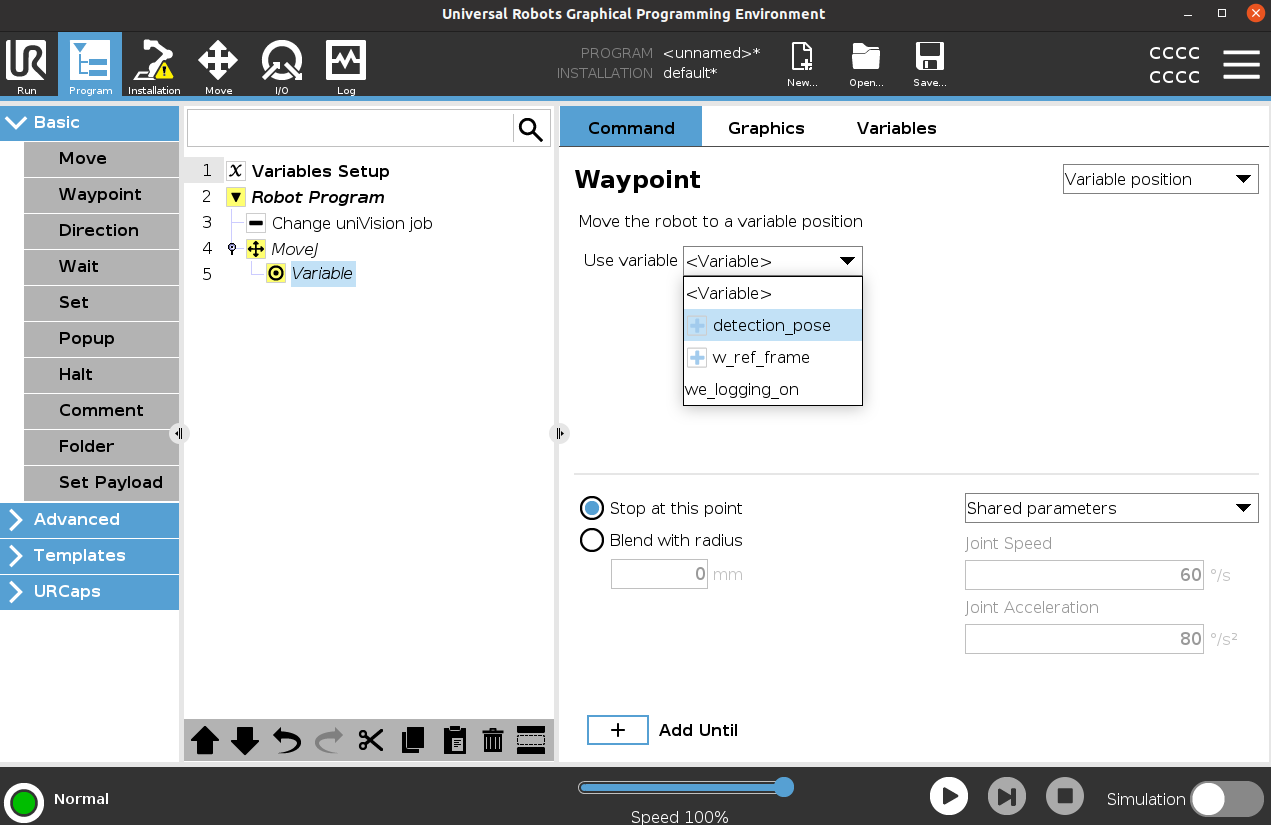
detection_posewaypoint to keep the robot out of the camera's field of view while it captures images. - Camera on robot: Move the robot to the detection pose so that the camera can check for objects. This detection pose must be the one from the URCap (identical to the first calibration pose), and is used as the
detection_posefeature. To update it, set the detection pose on the URCap installation page and re-run the calibration process.
Detect objects
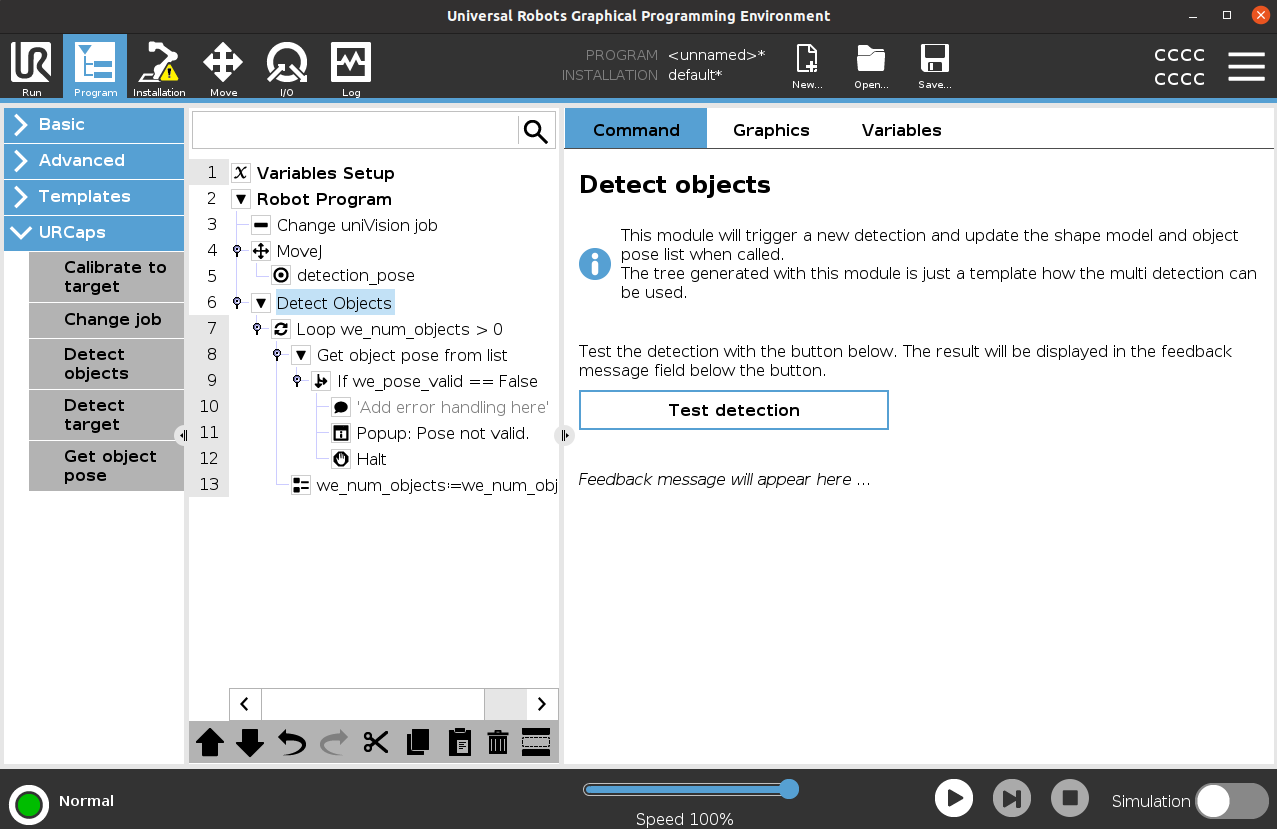
Add the Detect objects node. It triggers a detection and sets we_num_objects. Place a Get object pose node inside it to read an object from the buffer. Each Get object pose sets we_object_pose, we_shape_model, we_custom_value, and we_pose_valid.
Always check we_pose_valid before using the pose — the examples pop up an error and halt if it is False. You can add conditional checks on we_shape_model or we_custom_value to branch per object type.
Example programs
Two example programs are provided — one per calibration case:
Camera_on_robot_example— the detection pose is a variable waypoint using the URCapdetection_posefeature.Camera_not_on_robot_example— the detection pose is a fixed waypoint you teach so the robot does not cover the target.
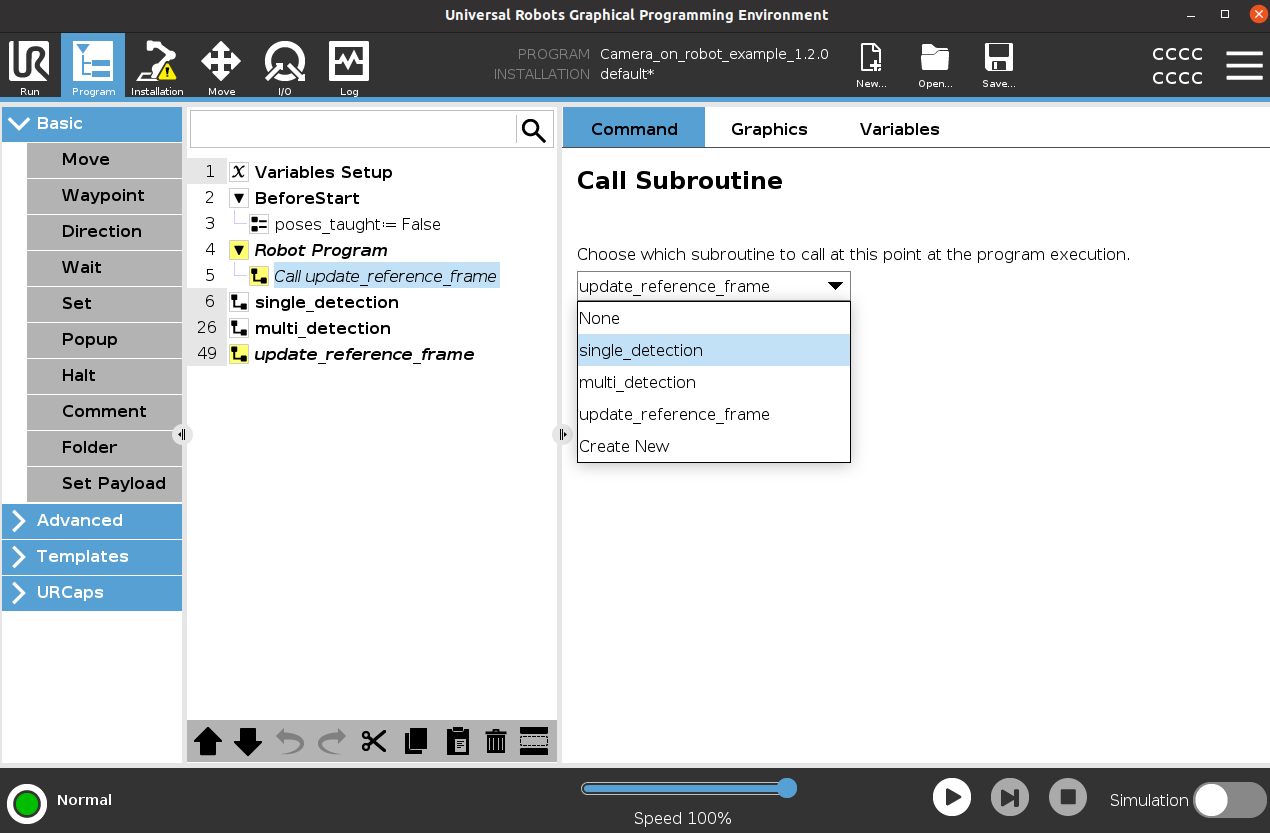
Both programs contain the same three subprograms, called with the Call command:
single_detectionmulti_detectionupdate_reference_frame
single_detection
Changes to the detection job (find_objects.u3p), moves to the detection pose, runs Detect objects, and reads one object with Get object pose. After validating we_pose_valid, it moves to the object at reduced speed, then provides placeholder Pick object / Place object folders for your gripping and placing logic.
multi_detection
Like single_detection, but wraps Get object pose in a while we_num_objects > 0 loop to handle multiple objects from a single detection. At the end of each iteration, the program assigns we_num_objects = we_num_objects - 1 to advance through the buffer and prevent index errors.
update_reference_frame
Run from the Main program. It shows how the calibration target pose can update a reference frame — and, with it, all related poses (see the Wenglor Robot Server overview in the wenglor robot vision manual). A typical use case is a mobile platform correcting positional deviation in front of a machine or shelf.
The Detect target node is the URCap front end for the target:pose command described in Target Pose and Camera-to-Target Calibration in the wenglor robot vision manual — that page also covers calibration:target, which this URCap exposes as its own Calibrate to target node (see below).
The example flow:
- Change job to
find_target.u3p, then move to a pose where the target is visible (and, for camera not on robot, not covered by the robot). - Detect target — writes the target pose into
we_target_poseand setswe_pose_valid. If invalid, it pops up an error and halts. - An Assignment node assigns
we_target_poseto thew_ref_framefeature. This permanently updates the installation feature, so the change survives a robot restart. - If
poses_taught == False, the program shows a message asking you to teach the poses relative tow_ref_frame, setposes_taughttoTrue, and restart — then halts. - On the next run (with
poses_taught == True), the reference is updated and the robot moves to the poses taught relative tow_ref_frame(e.g.pose_in_machine).
Warning
w_ref_frameis saved in the installation, not in the program. Save the installation before shutting down the robot, otherwise the update is lost.- The program reads installation feature values only at program start, which is why the Assignment node is required to update
w_ref_framewithin the run so the same run can use the updated value. - When teaching your machine poses, select
w_ref_frameas the feature.
Calibrate to target
The Calibrate to target node recalibrates the camera-to-ground relation directly against the calibration target. Unlike the Calibration procedure on the installation page, it does not create a new numbered calibration file on the Machine Vision Device — the result is only cached and used for the rest of the session.
To use the node:
- Place it in the program and select the same calibration target configured on the installation's Calibration options tab.
- Move the robot to a pose where the target is visible before running the node.
- Run the node. It requires an active connection to the Machine Vision Device (set up on the URCap installation page); otherwise it reports an error and does nothing.
- On success, the node reports "Calibration to target successful".
Use Test calibration in the node's view to try the recalibration interactively while editing the program.
Note
The example programs do not call Calibrate to target — add it to your own program if you need to recalibrate to the target at runtime (e.g. after a mobile platform docks) without going through the full installation Calibration procedure.
Note
The example programs (Camera_on_robot_example, Camera_not_on_robot_example) and the URCap are available in this repository's sources directory.
Node reference
Look-up reference for the wenglor robot vision URCap: the installation nodes that configure the connection and calibration, the program nodes you place in the robot program, and the unit conventions the URCap maps between the generic robot vision API and UR.
Installation nodes (tabs)
Configured once under Installation → URCaps → "wenglor robot vision". See User Configuration for details.
| Tab | Configures |
|---|---|
| Connection | IP address (default 192.168.100.1), port (default 6008), connection slider, auto connect at startup. |
| Calibration options | Camera on/not on robot, ZVZJ calibration target size, calibration job name, number of calibration poses (5–11). |
| Set calibration poses | The individual calibration poses; for camera on robot, the first pose is also the detection pose. |
| Calibration | Starts the calibration procedure; stores a numbered calibration file on the device. |
| Information | Version information and Processing Instance status. |
Program nodes
Placed in the robot program from the URCaps section of the left-hand drop-down menu.
| Node | Input | Output / effect |
|---|---|---|
| Change job | uniVision job file name (jobNameKey) |
Loads the given job on the Processing Instance. Use Test loading job to verify the name. |
| Detect objects | — | Triggers a detection and fills the robot-server buffer. Sets we_num_objects. Acts as parent for Get object pose. |
| Get object pose | (reads the next object from the buffer) | Sets we_object_pose, we_shape_model, we_custom_value, and we_pose_valid. |
| Detect target | target index (targetSelectorDetectTargetIndexKey, default 0) |
Detects the calibration target; sets we_target_pose, we_custom_value, and we_pose_valid. Front end for the target:pose command — see Target Pose and Camera-to-Target Calibration. |
| Calibrate to target | target index (targetSelectorCalibrateTargetIndexKey) |
Recalibrates the camera-to-ground relation against the target; result is cached only (no new calibration file). Requires an active device connection. Front end for the calibration:target command — see Target Pose and Camera-to-Target Calibration. |
Updating the w_ref_frame reference frame is not a dedicated node: the example uses a standard Assignment node to assign we_target_pose (from Detect target) to the w_ref_frame installation feature.
Note
The URCap nodes are a graphical front end for the generic string based robot vision API. For the underlying commands, return values, and error codes, see the Generic Robot Vision Interface in the wenglor robot vision manual.
Program variables
Set by the URCap nodes and used in the example programs (prefix we_):
| Variable | Type | Set by | Description |
|---|---|---|---|
we_object_pose |
pose | Get object pose | The 3D object pose. |
we_target_pose |
pose | Detect target | The calibration target pose. |
we_num_objects |
integer | Detect objects | Number of found objects in the buffer. |
we_shape_model |
integer | Get object pose | Shape model ID of the current object. |
we_custom_value |
string | Get object pose / Detect target | Additional value linked in uniVision (e.g. detection score). |
we_pose_valid |
boolean | Get object pose / Detect target | Validity flag — check before moving to the pose. |
we_logging_on |
boolean | Change job / Detect objects (input) | If True, the wenglor nodes write to the robot log. |
Features and other variables used by the examples:
| Name | Kind | Description |
|---|---|---|
w_ref_frame |
installation feature | Reference frame updated by assigning we_target_pose. Saved in the installation, not the program — save the installation before shutdown, and assign it in the program so the updated value is used in the same run. |
detection_pose |
feature | The detection pose. Camera on robot: variable waypoint from the URCap. Camera not on robot: a fixed taught waypoint. |
pose_in_machine |
waypoint | Example pose taught relative to w_ref_frame in update_reference_frame. |
poses_taught |
boolean | In the Before Start section. Set to True once the poses have been taught relative to the updated w_ref_frame. |
Units and conventions
The generic robot vision API uses the following conventions, which the URCap maps to the UR representation:
- Positions
x, y, zare exchanged in meters — the same unit UR uses for poses. - Orientations
rx, ry, rzare exchanged as a rotation vector (Rodrigues convention, in radians) — the same convention UR uses for its pose orientation.
Because UR poses already use meters and a rotation vector, the pose format matches the generic API directly. See the command tables in the Generic Robot Vision Interface in the wenglor robot vision manual.