1. Installation of URCap
The wenglor robot vision URCap adds installation and program nodes to Polyscope 5 that connect the robot to a wenglor Machine Vision Device, calibrate the camera to the robot, and detect objects.
Prerequisites
| Requirement | Value |
|---|---|
| Robot series | UR E-series (CB-series is not supported) |
| Polyscope version | 5.22 or newer |
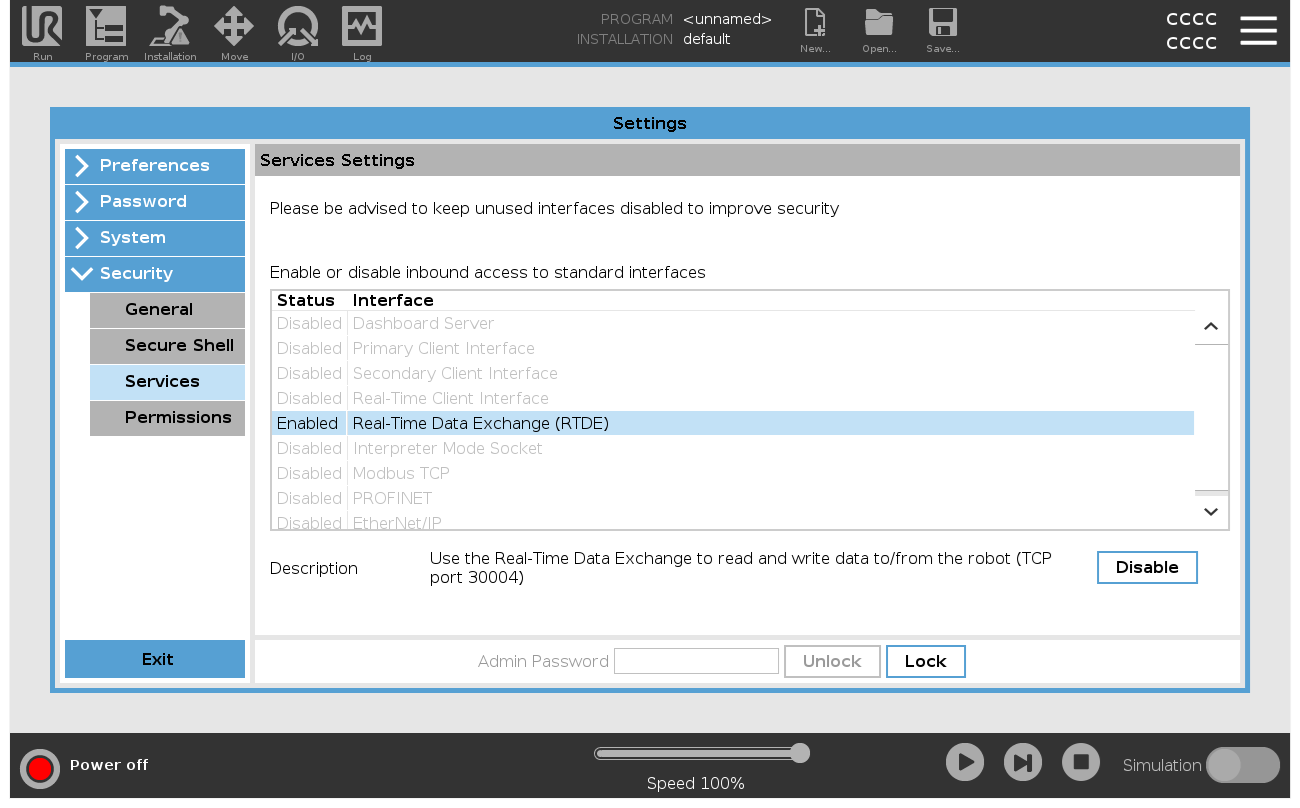
| RTDE | Real Time Data Exchange must be enabled in the UR security settings |
| Network | Robot and Machine Vision Device in the same network |
Download the URCap
Get the latest URCap version from this repository's own sources directory, and copy the URCap file onto a freshly formatted USB stick.
Install on the UR Teach Panel
- Plug the USB stick into the UR Teach Panel.
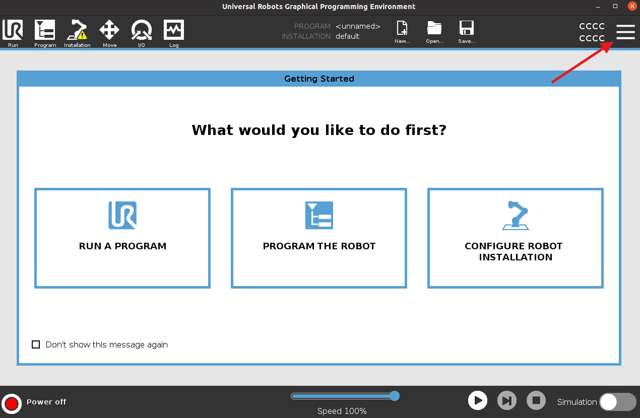
- Start the robot and open the menu in the top right corner of the UR Teach Panel.
- Navigate to the System menu and select URCaps.
- Click the + symbol.
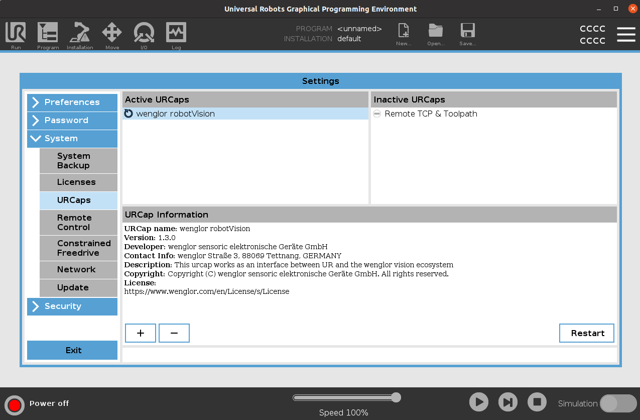
- Navigate through the file system until you find the URCap file "wenglor robot vision". Select it.
- Proceed by restarting the robot.
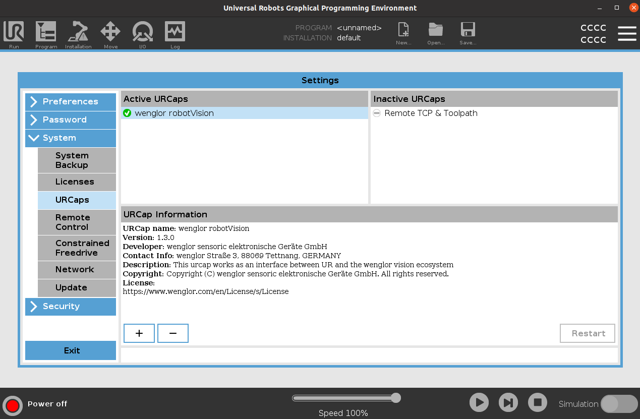
After the reboot, the URCap is displayed with a green hook, indicating a successful installation.
Note
On the Machine Vision Device website (tab Jobs → Robot Server), make sure the robot server is active and the robot manufacturer is set to UR Polyscope 5 URCap. See Settings on Device Website in the wenglor robot vision manual.
Once the URCap is installed, continue with User Configuration to configure the connection and run the calibration.