1. Installation & Setup
The KUKA robot vision example is a set of KRL modules (.src / .dat) together with an EthernetKRL configuration file (.xml). Before running the program, copy the files to the robot controller and configure the network connection to the Machine Vision Device.
Supported controllers
| Controller | Tested software | Notes |
|---|---|---|
| KRC4 | KSS 8.3.33, EthernetKRL 3.2.4 | Reference setup, tested with a KR 6 R1820 Arc robot arm. |
| KRC5 | — | Additionally tested. |
The socket communication uses the EthernetKRL (EKI) technology package, which must be installed on the controller.
Files
Get the robot example from this repository's sources directory. It consists of:
wenglorUserConfig.src/.dat— user configuration (use case, poses, jobs) and the pose movement procedures. See User Configuration.wenglorGlobal.src/.dat— core and helper functions (EKI socket communication, unit and rotation conversions, error handling).wenglorMain.src/.dat— program entry point: connects, runs the selected user command, and closes the connection.wenglorVision.xml— EthernetKRL channel configuration (IP address and port of the robot server).
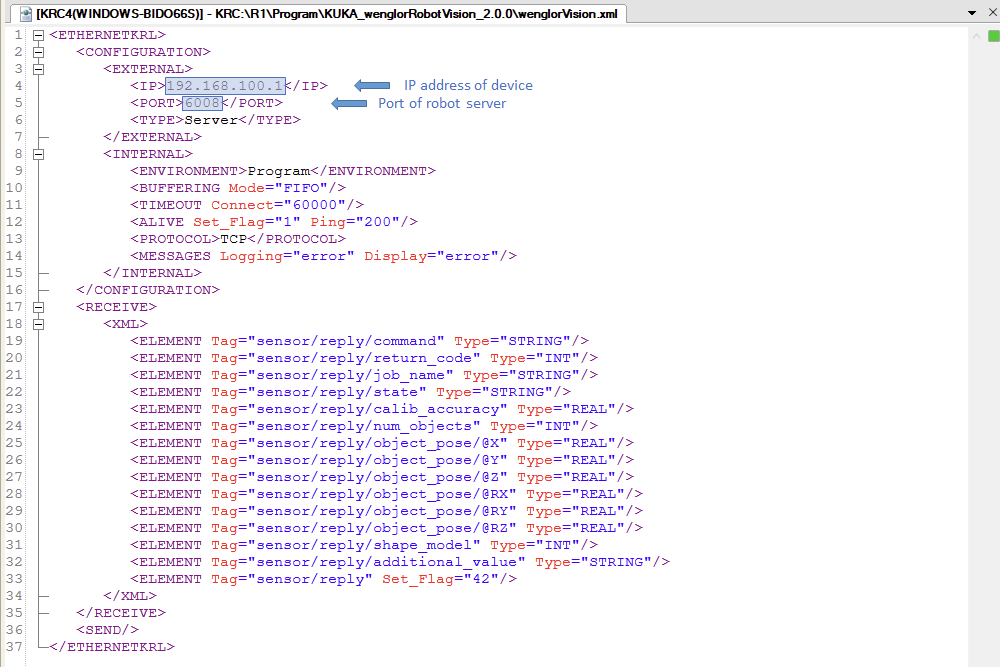
EthernetKRL configuration (wenglorVision.xml)
Edit the file wenglorVision.xml:
- Adjust the IP address of the Machine Vision Device (by default
192.168.100.1). - Adjust the port of the robot server (by default
6008).
Then copy wenglorVision.xml to the following location on the robot controller:
Note
The name wenglorVision used at W_CONNECTION[] in wenglorUserConfig.src must match the name of the XML file. By default, the names already match — do not rename it.
Copy the program to the controller
Copy the wenglorGlobal, wenglorMain and wenglorUserConfig module files (.src and .dat) to the robot controller, for example under KRC:\R1\Program.
Note
On the Machine Vision Device website (Tab Jobs → Robot Server), make sure the robot server is active and the robot manufacturer is set to KUKA. See Settings on Device Website in the wenglor robot vision manual.
Running the program
After updating the user configuration to match your setup and teaching the poses, run wenglorMain.src to start the calibration and the detection.