1. Installation & Setup
The robot vision example for ABB consists of the following files, available in the sources directory of this repository:
| File | Contents |
|---|---|
Generic wenglor vision interface.pgf |
Program file that references the modules below. |
wenglorUserConfig.modx |
User configuration (IP, port, poses, jobs, use case). See User Configuration. |
wenglorGlobal.modx |
Core and helper functions (socket communication, conversions). |
wenglorCalibration.modx |
Hand-eye calibration and verification. |
wenglorDetect.modx |
Object detection and movement to detected objects. |
Copy these files to the robot controller, e.g. to /HOME or /HOME/<project_folder>.
Supported controllers
| Controller | Minimum software version | Additional steps |
|---|---|---|
| OmniCore | RobotWare 7.3.2 | None — run the .modx files as-is. |
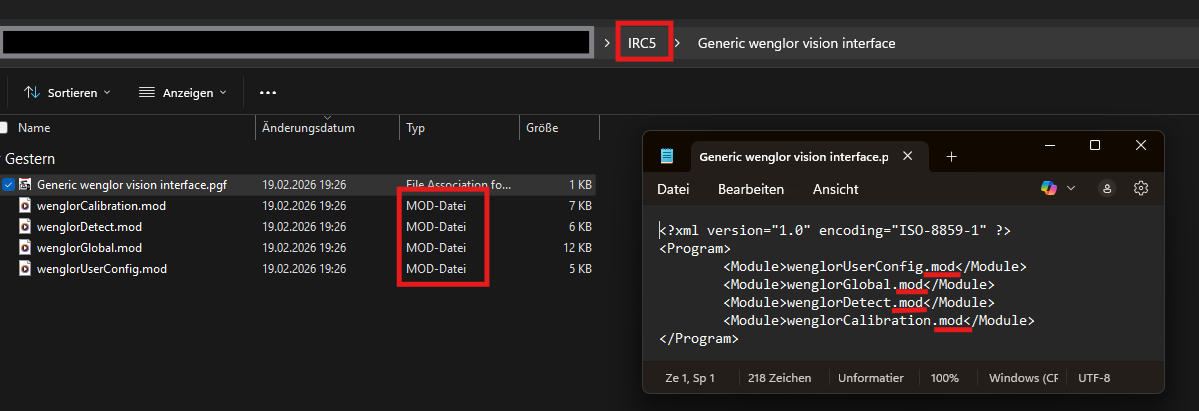
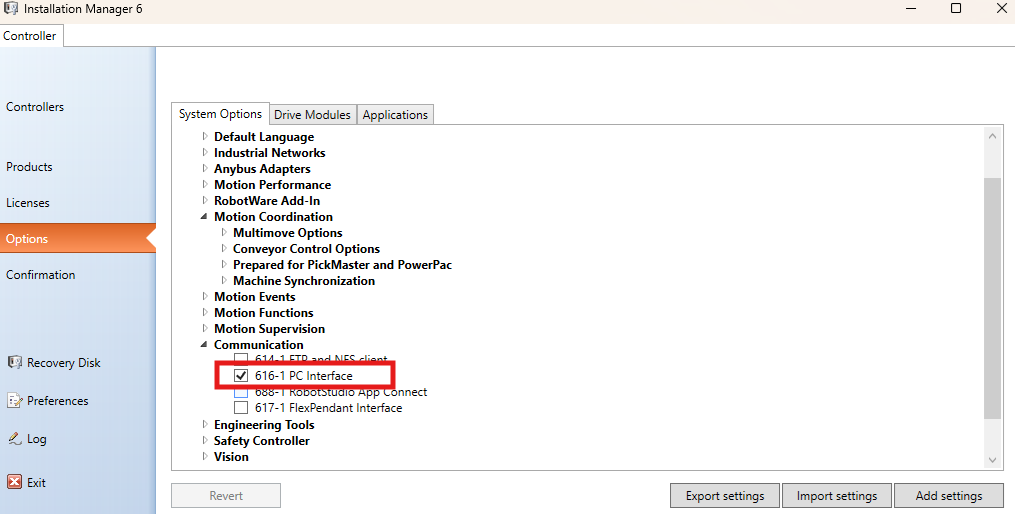
| IRC5 | RobotWare 5.15 | Rename the module files from .modx to .mod, update the corresponding references within the PGF file, and activate the PC Interface option. |
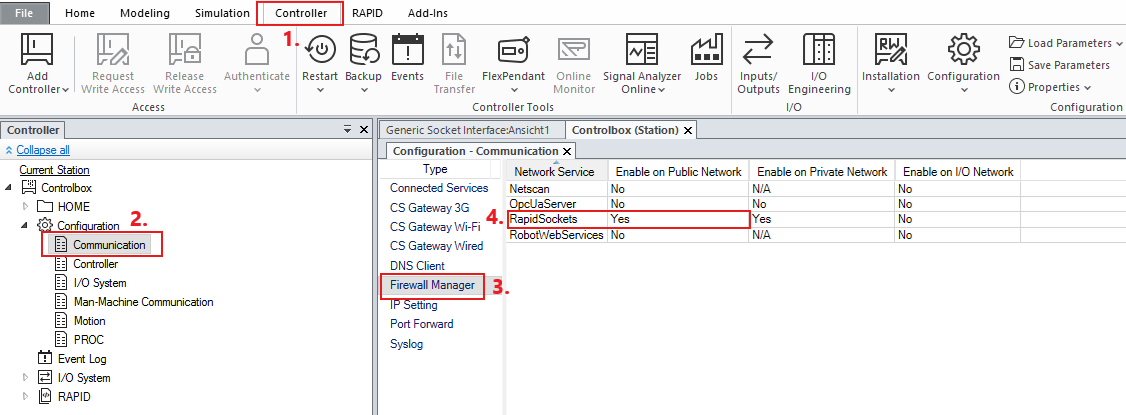
Network configuration in RobotStudio
In the ABB software RobotStudio, adjust the network settings of the ABB robot controller for the public network and make sure that RapidSockets is set to YES (Communication → Firewall Manager).
Note
On the Machine Vision Device website (Tab Jobs → Robot Server), make sure the robot server is active and the robot manufacturer is set to ABB. See Settings on Device Website in the wenglor robot vision manual.
Loading the program
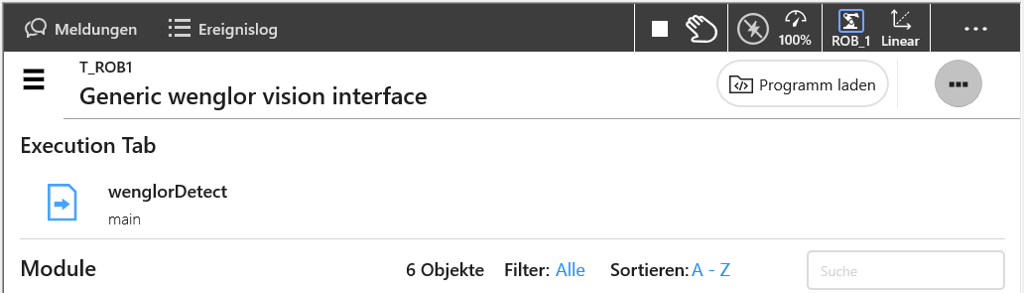
Adjust the parameters in wenglorUserConfig.modx to match your setup — see User Configuration. Once the user configuration is updated, load the program Generic wenglor vision interface. It is then ready to be executed.
Note
For details about the communication to the robot server, see Generic Robot Vision API in the wenglor robot vision manual.